
Docking Stations Explained: USB-C, Thunderbolt and What Your Team Actually Needs
- Kamran Hussain
- 2 days ago
- 7 min read

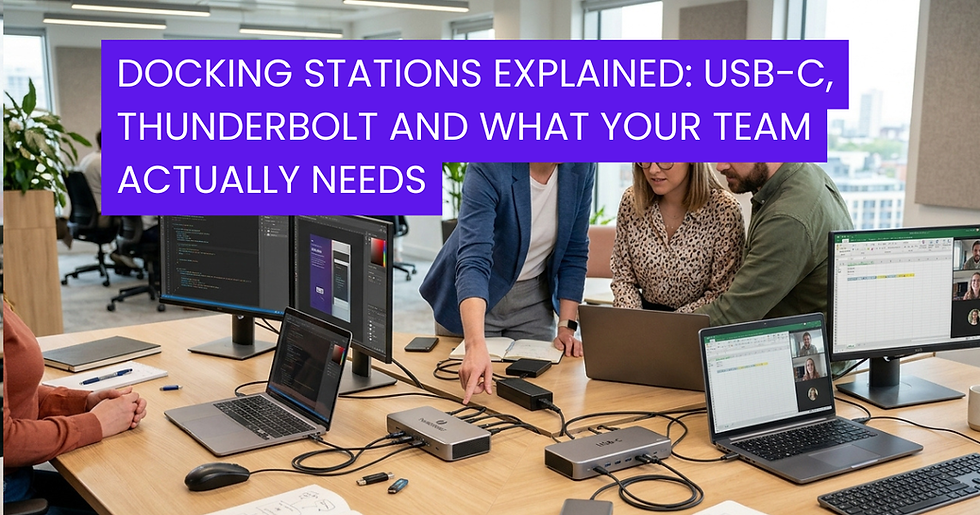
There's a moment most office workers know well. You arrive at your desk, open your laptop, and spend the next two minutes plugging in the monitor cable, the ethernet lead, the USB hub, the keyboard dongle, and the charging cable one by one, every single morning. Then you do it all again in reverse when you leave.
It's a minor frustration individually. Across a team of twenty, over the course of a year, it's hundreds of hours of wasted time and a tangle of cables that no amount of cable management will fully tame.
A docking station solves this entirely. One cable in, and your laptop instantly connects to everything on your desk monitors, peripherals, network, power. One cable out, and you're free to go.
But not all docking stations are created equal, and the market has become genuinely complex. USB-C, Thunderbolt 3, Thunderbolt 4, DisplayLink, universal compatibility the terminology alone is enough to send most buyers reaching for the nearest IT supplier. At Data Direct UK, we help UK businesses cut through exactly this kind of complexity every day. So here's everything you actually need to know.
What Is a Docking Station and Why Does Your Business Need One?
A docking station is a hub that connects your laptop to multiple peripherals and displays through a single cable connection. Rather than plugging and unplugging individual devices every time you sit down or move away from your desk, the dock stays connected to your desk setup permanently. Your laptop connects to the dock, and instantly inherits everything attached to it.
For businesses operating a hybrid working model staff moving between home, office, and hot desks a laptop docking station for the office is one of the single most impactful productivity investments available. It removes friction from the working day, standardises desk setups across the office, and protects laptop ports from the wear and tear of repeated plug cycles.
Beyond convenience, docks enable setups that simply aren't possible with a laptop alone: dual or triple monitor configurations, wired gigabit ethernet for reliable video calls, and simultaneous charging all through a single connection point.
Understanding the Technology: USB-C vs Thunderbolt
This is where many buyers get lost, and it's worth taking a moment to explain the differences clearly.
USB-C
USB-C is a connector standard it describes the physical shape of the plug, not what it can actually do. A USB-C port on one laptop may support video output, data transfer, and charging simultaneously. On another, it might only support charging. This inconsistency is the source of enormous confusion in the market.
A USB-C docking station for a laptop uses this connector to deliver power, data, and display output through a single cable. The bandwidth available depends on the underlying protocol USB 3.2, USB4, or Thunderbolt which determines how many monitors you can run, at what resolution, and how fast data transfers.
For general office use a single external monitor, wired ethernet, a few USB peripherals, and charging a good USB-C dock is entirely sufficient and represents strong value for money.
Thunderbolt 3 and Thunderbolt 4
Thunderbolt is Intel's high-bandwidth protocol that runs over the USB-C connector. It offers significantly more bandwidth than standard USB-C, which matters when you need to drive multiple high-resolution displays, transfer large files quickly, or connect high-performance peripherals.
A Thunderbolt 4 docking station in the UK represents the current gold standard for laptop connectivity. Thunderbolt 4 guarantees:
Minimum 40Gbps bandwidth (double that of USB 3.2)
Support for two 4K displays simultaneously
Charging at up to 100W
Daisy-chaining of up to six Thunderbolt devices
Consistent, certified performance across all compliant devices
The key advantage of Thunderbolt 4 over its predecessor is standardisation. While Thunderbolt 3 performance varied between implementations, Thunderbolt 4 certification requires manufacturers to meet a defined minimum spec — meaning you know exactly what you're getting.
For creative teams, developers, finance professionals running multi-monitor setups, or anyone handling large file transfers as part of their daily workflow, Thunderbolt 4 is worth the premium
Multi-Monitor Setups: What You Need to Know

One of the most common reasons businesses invest in docking stations is to enable multi-monitor setups. Running two or three screens from a single laptop significantly expands the working canvas and the productivity evidence is compelling. Research consistently shows that dual-monitor users complete tasks faster and switch between applications less frequently than those working on a single screen.
But not every dock supports multiple monitors equally, and this is where buying decisions go wrong.
A standard USB-C dock with a single DisplayPort or HDMI output will drive one external monitor. For dual-monitor support, you need either:
A dock with two independent video outputs and sufficient bandwidth to drive both (typically requiring Thunderbolt or USB4)
A dock using DisplayLink technology, which uses the laptop's CPU to encode video effective, but can introduce slight latency and requires driver installation
For a multi-monitor docking station that genuinely performs particularly at QHD or 4K resolution Thunderbolt 4 is the most reliable foundation. It handles dual 4K outputs without compromise and without the driver dependency of DisplayLink solutions.
Docking Stations for MacBook: A Special Consideration
Apple's MacBook range deserves specific mention because it sits in its own category. MacBooks with Apple Silicon (M1, M2, M3, and M4 chips) natively support only one external display via the built-in Thunderbolt ports on most models a hardware limitation that catches many buyers off guard.
A docking station for MacBook work that supports multiple monitors on Apple Silicon will typically rely on DisplayLink technology to work around this limitation. DisplayLink docks encode the additional display signal through software, enabling dual or triple monitor setups that the hardware wouldn't otherwise support. The trade-off is the need for a DisplayLink driver installation and a minor processing overhead.
For MacBook Pro models (14-inch and 16-inch with M3 Pro or M3 Max chips), native multi-display support is available without DisplayLink but it requires a dock that correctly implements Thunderbolt 4 and targets the right port configuration.
The practical takeaway: if your team uses MacBooks, always verify multi-monitor compatibility explicitly before purchasing a dock, and lean towards suppliers who can advise on the specifics.
Universal Docking Stations: The Mixed-Device Office
Most UK business offices are not running a single device type. You might have Dell laptops alongside MacBooks, a few HP devices, and a Surface or two in the mix. This is where a universal docking station in the UK becomes particularly valuable.
Universal docks typically USB-C or Thunderbolt 4 models from manufacturers like Dell, Lenovo, CalDigit, or OWC are designed to work across device brands and operating systems. They won't always unlock every feature on every device (Thunderbolt-specific features require a Thunderbolt-equipped laptop), but for core connectivity monitors, ethernet, USB peripherals, and charging they perform reliably across the board.
For businesses standardising desk setups across a mixed fleet, a well-chosen universal dock removes the headache of managing device-specific peripherals and simplifies procurement considerably.
The DataDirect Docking Station Buying Guide: Choosing the Right Dock for Your Team

To simplify what can quickly become an overwhelming decision, here's a practical framework:
For general office staff (single monitor, standard peripherals, wired ethernet): A quality USB-C dock with one HDMI or DisplayPort output, gigabit ethernet, and 65–90W power delivery covers everything needed. Reliable options are available at £80–£150. This is the right choice for the majority of desk-based roles.
For power users, creatives, and data professionals (dual monitors, high-speed data transfer): A Thunderbolt 4 docking station is the right investment. Dual 4K display support, 40Gbps bandwidth, and certified compatibility make it future-proof and genuinely capable. Budget £200–£350 for a quality unit from a reputable brand.
For MacBook users running multiple displays: Verify DisplayLink compatibility or target Thunderbolt 4 docks confirmed to work with the specific MacBook model in use. Don't assume check first, or ask DataDirect to confirm compatibility before ordering.
For mixed-device offices: A universal Thunderbolt 4 dock from a major brand covers most scenarios. It won't be the cheapest option, but the flexibility it delivers across different devices and operating systems pays for itself in reduced support complexity.
This docking station buying guide for UK businesses isn't exhaustive — every office has its own configuration — but it covers the scenarios we encounter most frequently.
What DataDirect Recommends
The single biggest mistake businesses make when buying docking stations is choosing on price alone, without verifying compatibility with their specific devices and display setup. A £90 USB-C dock will not drive three 4K monitors from a MacBook. A Thunderbolt 4 dock won't unlock Thunderbolt features on a laptop with a standard USB-C port.
Compatibility first. Performance second. Price third.
At DataDirect, we stock docking stations from Dell, Lenovo, CalDigit, HP, and other leading brands — and we'll tell you exactly which dock works with which device before you spend a penny. Whether you're kitting out a single executive desk or standardising connectivity across a 50-person office, we'll make sure you get it right the first time.
Frequently Asked Questions
Q1: What is the difference between a USB-C and a Thunderbolt 4 docking station? USB-C describes the connector shape, while Thunderbolt 4 is a high-bandwidth protocol that runs over it. Thunderbolt 4 docks offer 40Gbps bandwidth, dual 4K display support, and certified compatibility making them significantly more capable than standard USB-C docks for demanding workloads.
Q2: Will a Thunderbolt 4 dock work with my USB-C laptop? Yes, but with limitations. A Thunderbolt 4 dock will connect to any USB-C laptop, but Thunderbolt-specific features such as dual 4K output and daisy-chaining only activate when the laptop itself has a Thunderbolt port. Standard USB-C users will still get ethernet, charging, and basic display output.
Q3: Can I run two monitors from a docking station? Yes, provided the dock supports dual video output and your laptop has sufficient bandwidth. Thunderbolt 4 docks handle dual 4K displays natively. For standard USB-C laptops, a DisplayLink dock can enable multi-monitor setups but requires driver installation and uses some processing overhead.
Q4: Do docking stations work with MacBooks? Most do, but multi-monitor support on Apple Silicon MacBooks requires a DisplayLink-compatible dock or a confirmed Thunderbolt 4 model. Standard MacBook Air models natively support only one external display, so always verify compatibility with your specific MacBook model before purchasing.
Q5: Is a universal docking station worth it for a mixed-device office? Absolutely. A quality universal Thunderbolt 4 dock from a reputable brand works reliably across Dell, HP, Lenovo, and Apple devices simplifying procurement, standardising desk setups, and reducing the support burden of managing device-specific peripherals across a mixed fleet.


Comments